:~/writing$ cat "Customizing the Alert Messages in IE"
Customizing the Alert Messages in IE
Have you ever felt that this looks ugly ?

Did you ever want to customize the Image , the text, the Icons ?
You would probably want to customize it to the Look and feel of your web application.
We are gonna talk about how to customize the Alert Box in IE .
When we are done , it will look like this .

We can change the Default ALERT function with Javascript .
window.alert=function( alertMessage ){
//Function Body
}
Thats it!!! Thats the Magic line!
With this function , you can customize the way the alert messages are shown.
I will demonstrate one way to render the custom Alert message.
We will put a DIV in the Page that will show the alert message .
<div id="alertPanel">
</div>
We will form the body by forming a string containing the representational HTML .
<DIV> //To Contain the Alert Message
<IMG> //The icon of the message prompt
<SPAN> //This element contains the text to be shown
<INPUT TYPE="BUTTON"/> //The Button to close the alert message
</DIV>
Actual Code showing the same
var alertBox = "<DIV style=\"width:350px;height:70px\" class=\"alertPosition\">";
            alertBox +="<div class=\"alertBoxIn\" >";
                     alertBox  +="<img src=\"images/InfoBox-48x48.png\" style=\"position: relative; top: 1%; left: 2%\" /></td>";
                     alertBox +="<SPAN style=\"position: relative; top:-30%; left: 12%\">"+alertMessage+"</SPAN>";
                     alertBox  +="<input style=\"position: relative; top:20%; left:10%\" type=\"button\" value=\"    Ok      \" onclick=\"closeAlert();\" />";
            alertBox+="</div>";
    alertBox+="</div>";
Once the Body of the Alert message is formed , we need to add it to the document.
we will do this by injecting the body of the Alert Message into the alertPanel Div that we already have on the page .
document.getElementById("alertPanel").innerHTML = alertBox;
Upon click of the Button , you would want to close the alert message .
We close the Alert message by removing it from the document .
document.getElementById("alertPanel").innerHTML = "" ;
The Completed Function looks like this ......
window.alert=function( alertMessage )
{
    var alertBox = "";
            alertBox +="<div style=\"width:350px;height:70px\" class=\"alertBoxIn alertPosition\" >";
                     alertBox  +="<img src=\"images/InfoBox-48x48.png\" style=\"position: relative; top: 1%; left: 2%\" /></td>";
                     alertBox +="<SPAN style=\"position: relative; top:-30%; left: 12%\">"+alertMessage+"</SPAN>";
                     alertBox  +="<input style=\"position: relative; top:20%; left:10%\" type=\"button\" value=\"    Ok      \" onclick=\"closeAlert();\" />";
            alertBox+="</div>";
    document.getElementById("alertPanel").innerHTML = alertBox;
    document.getElementById("alertPanel").focus();
 }
Bonus:
Creating your own alert prompt message
I changed the icon to make it look like an error message .
See here.....
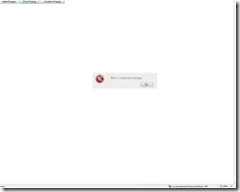

The javascript for this custom error function is :
function ErorMessage( errorMessage )
{

  var alertBox = "<DIV style=\"width:350px;height:70px\" class=\"alertPosition\">";
            alertBox +="<div class=\"alertBoxIn\" >";
                     alertBox  +="<img src=\"images/ErrorCircle-48x48.png\" style=\"position: relative; top: 1%; left: 2%\" /></td>";
                     alertBox +="<SPAN style=\"position: relative; top:-30%; left: 12%\">"+errorMessage+"</SPAN>";
                     alertBox  +="<input style=\"position: relative; top:20%; left:10%\" type=\"button\" value=\"    Ok      \" onclick=\"closeAlert();\" />";
            alertBox+="</div>";
    alertBox+="</div>";
    document.getElementById("alertPanel").innerHTML = alertBox;
}
Once this function is implemented, you can use the alert in your functions normally , be sure to include the script and the div "alertPanel".
The Complete code looks like this ......
<!DOCTYPE html PUBLIC "-//W3C//DTD XHTML 1.0 Transitional//EN" "http://www.w3.org/TR/xhtml1/DTD/xhtml1-transitional.dtd">
<html xmlns="http://www.w3.org/1999/xhtml">
<head>
    <title>AJAX Client Side Documentation</title>
    <link href="css/defaultStyles.css" rel="stylesheet" type="text/css">

    <script language="javascript">
        window.alert=function( alertMessage )
            {
                var alertBox = "";
                        alertBox +="<div style=\"width:350px;height:70px\" class=\"alertBoxIn alertPosition\" >";
                                 alertBox  +="<img src=\"n\" style=\"position: relative; top: 1%; left: 2%\" /></td>";
                                 alertBox +="<SPAN style=\"position: relative; top:-30%; left: 12%\">"+alertMessage+"</SPAN>";
                                 alertBox  +="<input style=\"position: relative; top:20%; left:10%\" type=\"button\" value=\"    Ok      \" onclick=\"closeAlert();\" />";
                        alertBox+="</div>";
                document.getElementById("alertPanel").innerHTML = alertBox;
                document.getElementById("alertPanel").focus();
             }

            function ErorMessage( errorMessage )
            {

              var alertBox = "<DIV style=\"width:350px;height:70px\" class=\"alertPosition\">";
                        alertBox +="<div class=\"alertBoxIn\" >";
                                 alertBox  +="<img src=\"images/ErrorCircle-48x48.png\" style=\"position: relative; top: 1%; left: 2%\" /></td>";
                                 alertBox +="<SPAN style=\"position: relative; top:-30%; left: 12%\">"+errorMessage+"</SPAN>";
                                 alertBox  +="<input style=\"position: relative; top:20%; left:10%\" type=\"button\" value=\"    Ok      \" onclick=\"closeAlert();\" />";
                        alertBox+="</div>";
                alertBox+="</div>";
                document.getElementById("alertPanel").innerHTML = alertBox;
            }

            function closeAlert()
            {
                var alertBox =  document.getElementById("alertPanel");
                alertBox.innerHTML ="";
            }

    </script>

</head>
<body>
    <input type="button" value="Alert Popup" onclick="javascript:alert('This is a custom alert message')" />
    <input type="button" value="Error Popup" onclick="javascript:ErorMessage('This is a custom Error message')" />
    <div id="alertPanel">
    </div>
</body>
</html>
PROPS:
The Images I use in the demo come from here ...http://www.iconarchive.com/category/application/vista-elements-icons-by-icons-land.html
The Icons rock !!! If interested , give the author a visit at : http://www.icons-land.com/. I strongly suggest you check them out .